Your report, item by item
From your August 11 and 18 emails and today's call, working in your grandmother's 95th birthday book.
| You reported | Status |
|---|---|
| A photo printed sideways | Fixed and live. Phone photos are rotated upright before the PDF is built. Proof below. |
| A photo came out as a black box | Fixed and live. Photos with a transparent background are flattened onto white. Proof below. |
The prompt shows [Name] instead of the person's name | Fixed and live. The PDF now reads the honoree's name in every question. |
| Text size only changed the answers, not the questions | Fixed and live. The size preview now uses the same text size setting as the download. |
| "I'm not seeing the fixes. Is it because the book was finalized?" | Not the finalized flag. The photo fix from August 14 had not actually been published to the site. It is now, along with everything on this page. |
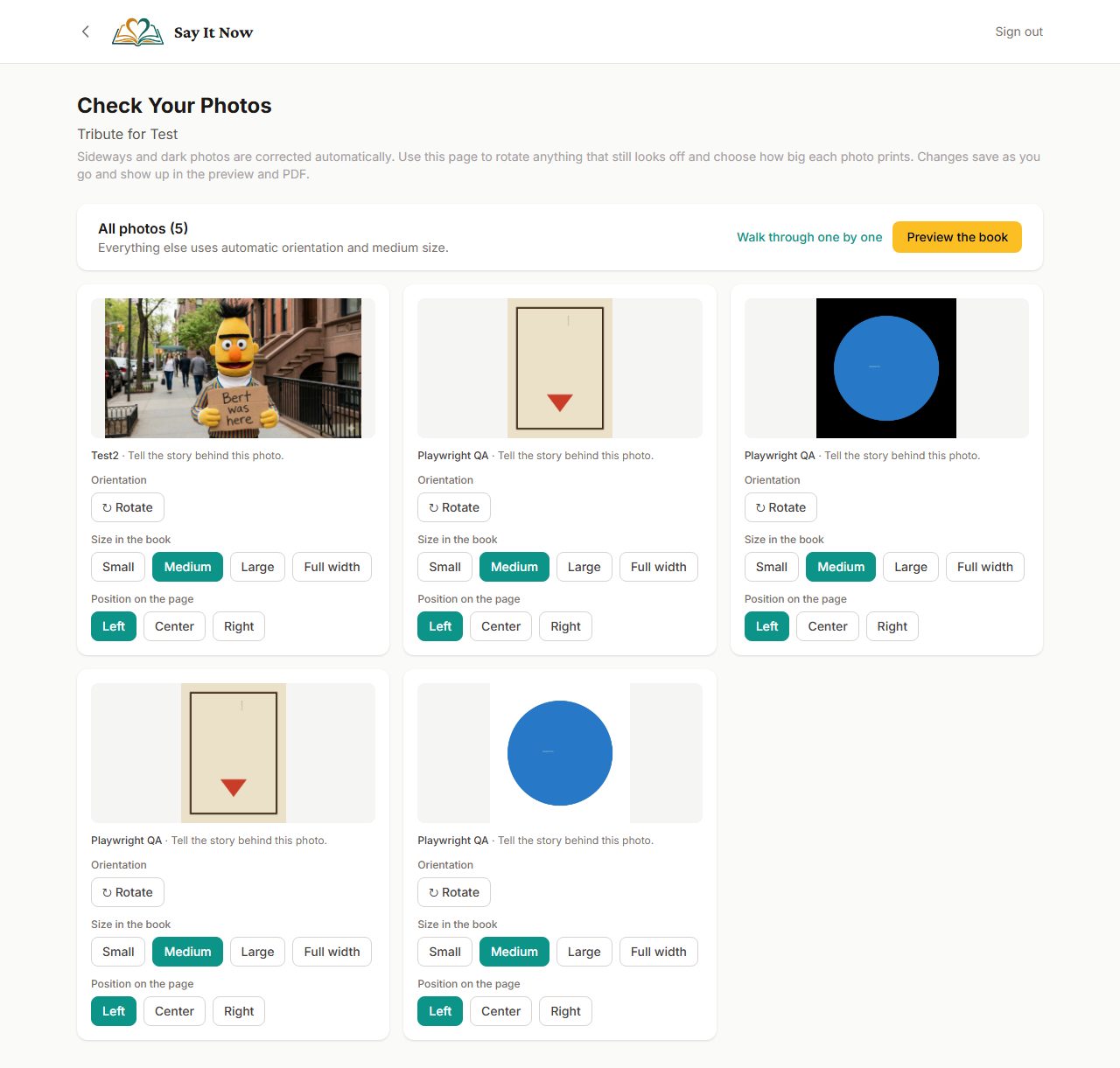
| A way to fix size, placement, and orientation per photo, without it being complicated | New: the Photo Fixer. Walk through photos one at a time, or see them all at once. |
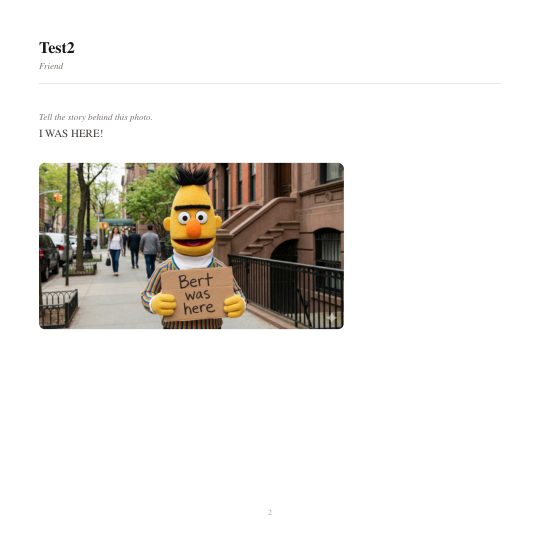
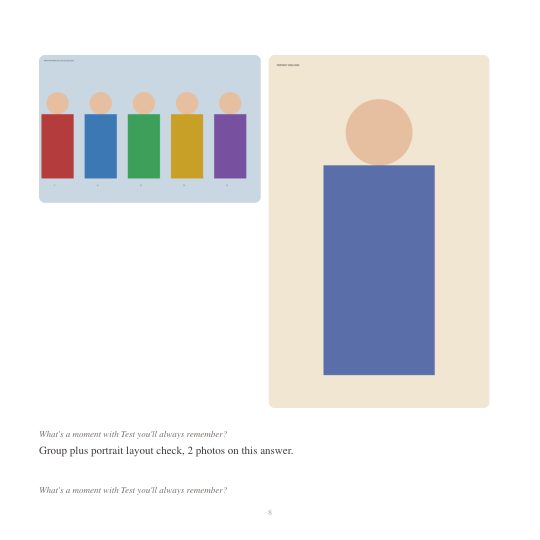
| Photos are tiny and cropped on the page (what we saw on the call) | Fixed and live. The automatic layout no longer squeezes every photo into a small square. One photo gets two-thirds of the page width at its natural shape; two sit side by side; three or more tile. Before and after below. |
| Ordering a physical book is not intuitive | New: an "Order Printed Copy" button right on the book page, and the size page now says what it is for. |
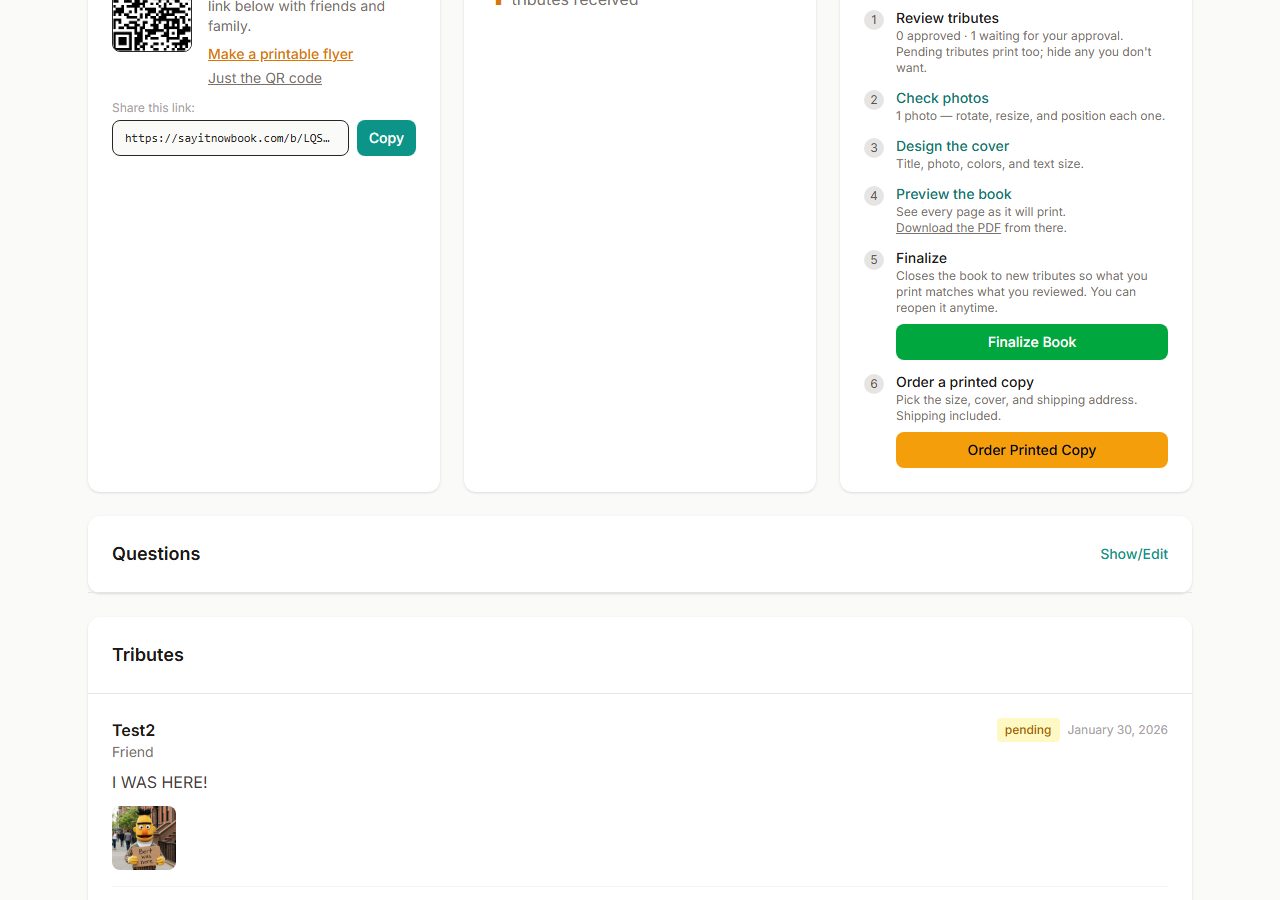
| Finalizing is unclear | New: a six-step "Ready to Print?" checklist replaces the lone Finalize button and explains what finalizing does. |
| Relabel some things for clarity | Done for the ones that were obviously confusing (list at the bottom). I need your list for the rest. |
Fixed
Sideways and black photos
FixedLivePhones store many photos on their side with a note that says "rotate me." Browsers honor the note; the PDF engine did not. Photos are now rotated upright before they go into the PDF. Photos with a see-through background used to turn black in print; they are now placed on white.
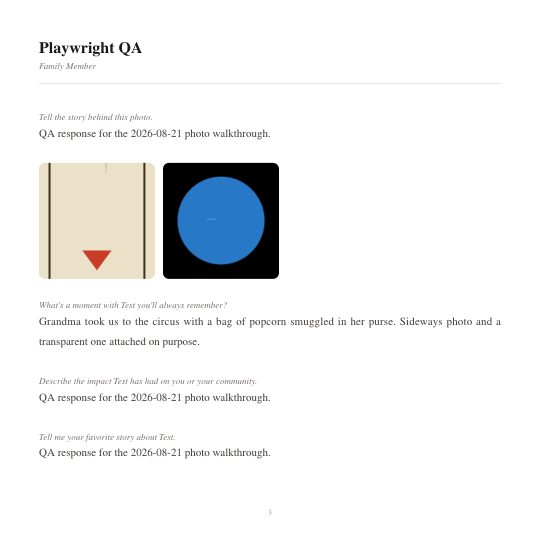
To prove it on the live site, I submitted a test tribute to one of my own test books through the public form with two deliberately broken photos: a sideways phone-style photo and a transparent one. This is the resulting PDF page. The photo is upright and the circle sits on white, not black.
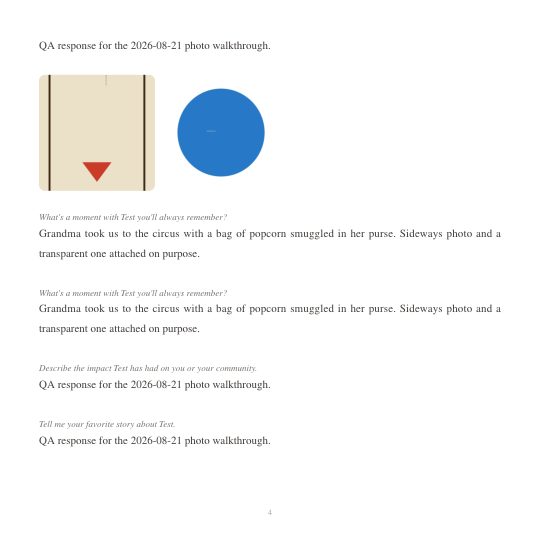
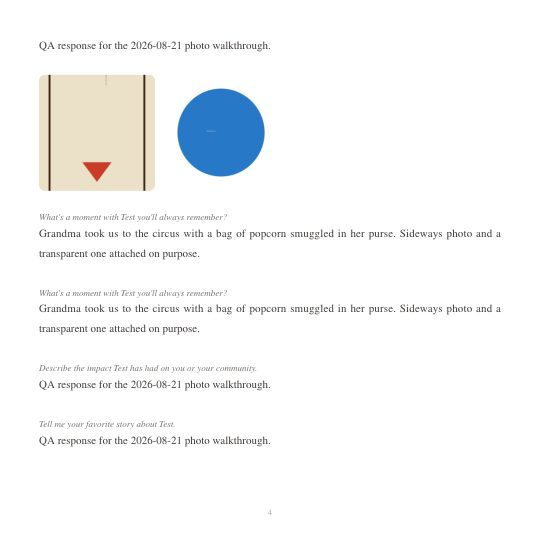
Upload step, also fixed and confirmed live. The form shrinks big photos when they are uploaded, and that step was turning transparent photos black on its own, before any of the print fixes could help. I corrected it, published it, and submitted the same transparent test photo again. Below: the earlier upload (left photo pair, black) next to the new upload (right pair, white) in the same PDF. Your grandmother's book's black photo predates that step, so it is covered by the print-side fix above either way.
[Name] in the questions, and question text size
FixedLiveThe on-screen preview already swapped [Name] for the honoree's name, but the PDF did not. Now every place a PDF is produced (the download button, the size previews, and the print file) uses the real name. The size-preview window also now applies your text size setting to the questions, not just the answers.
New
Automatic photo layout
NewLiveThis is the part that made your book look wrong even when the photos themselves were fine. Every photo used to be forced into a small square, about an inch and a half on a 7.5 inch book, and the square crop cut the edges off group shots and the tops off portraits.
Now the book decides a sensible size on its own. One photo gets about two-thirds of the text width at its natural shape (a bit narrower if it is a portrait). Two photos sit side by side. Three or more tile in a row. Nothing is cropped unless you choose the Small snapshot size yourself. The sizes are fractions of the page, so they stay right if you change the book size, and tall photos are capped to the page height.
Your Photo Fixer choices still apply on top. "Auto" is the new default; pick Small, Medium, Large, or Full width only when you want something different.
Photo Fixer
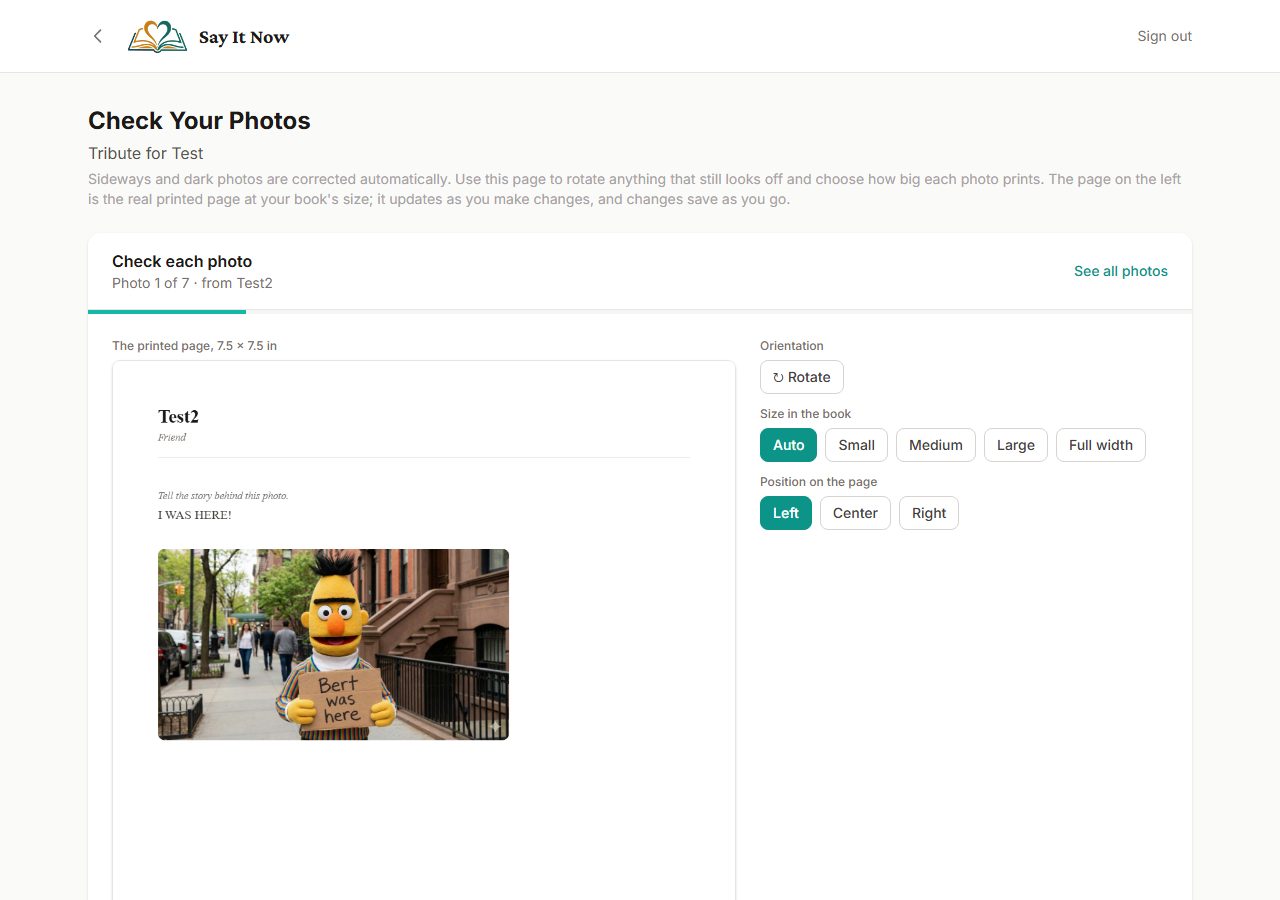
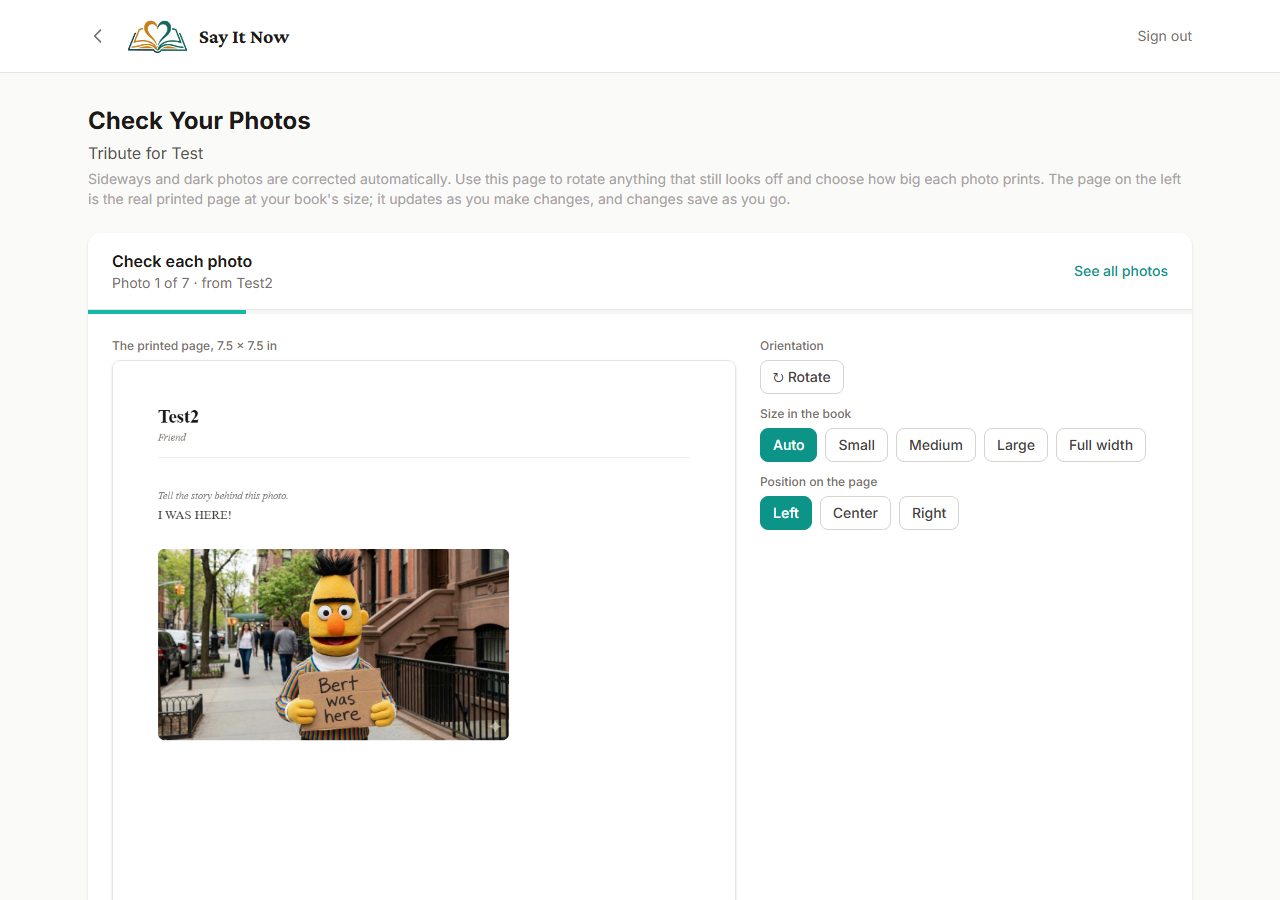
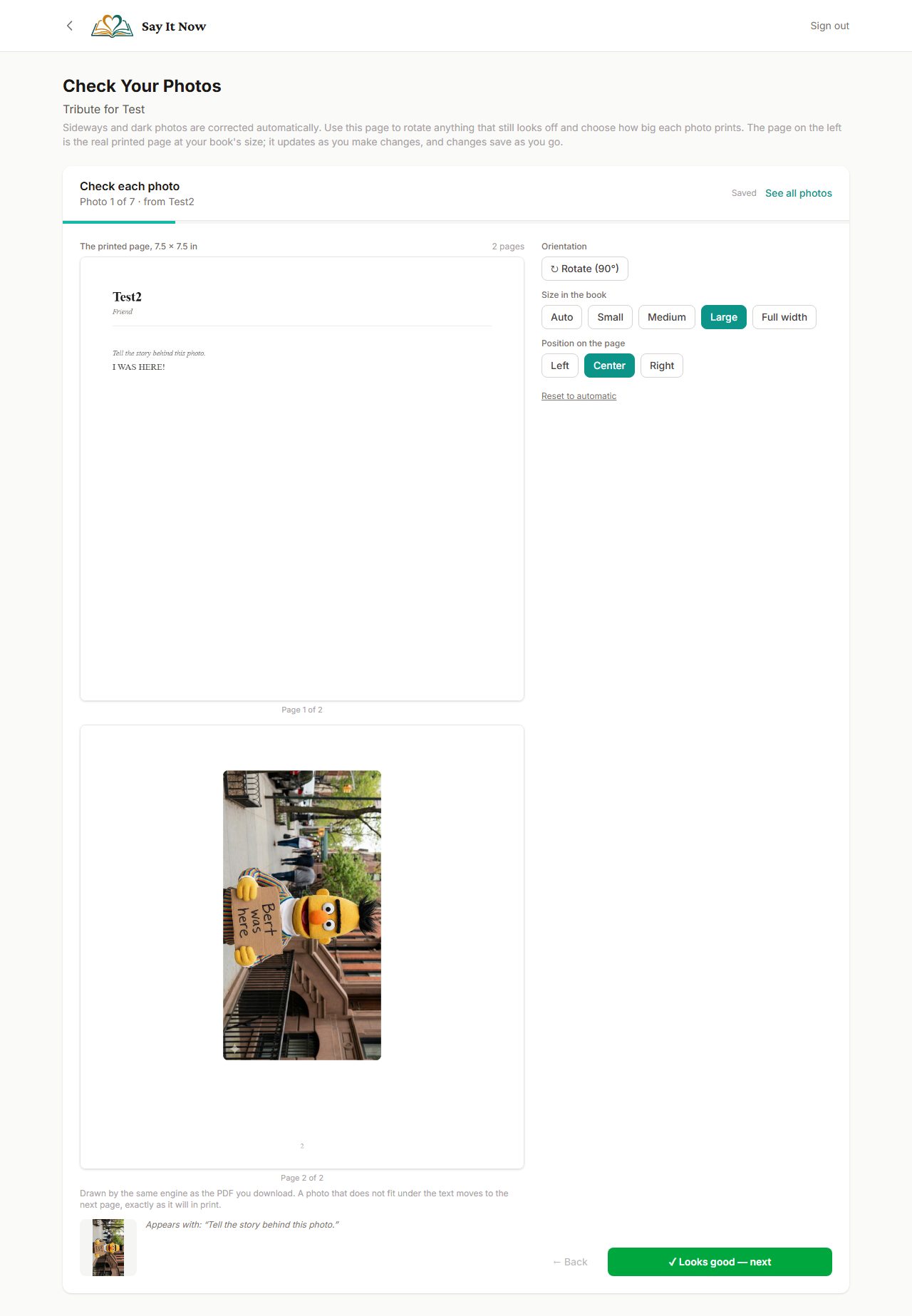
NewLiveOpen it from the book page ("Check Photos" at the top, or step 2 of the checklist). It starts by walking you through each photo, one at a time, with a large preview and three choices:
- Rotate, a quarter turn per click, for anything that still looks off.
- Size in the book: Small, Medium (the default), Large (about half the page width), or Full width.
- Position on the page: Left, Center, or Right.
The big panel on the left is the real printed page: the same engine that makes your PDF draws the page at your book's size, and it redraws every time you click a control. What you see there is what prints. Press "Looks good" to move on. Changes save by themselves. "Reset to automatic" puts a photo back the way it was. Small photos that may print soft get a "Low resolution" badge.
Ready to Print? checklist
NewLiveThe "Actions" box on the book page is now a six-step list in the order you would actually do things:
- Review tributes (it tells you how many are approved or still waiting on you)
- Check photos (opens the Photo Fixer)
- Design the cover
- Preview the book and download the PDF
- Finalize. The text explains what it does: it closes the book to new tributes so what you print matches what you reviewed. You can reopen it anytime.
- Order a printed copy (gold button, goes straight to the order form)
Finding the order form
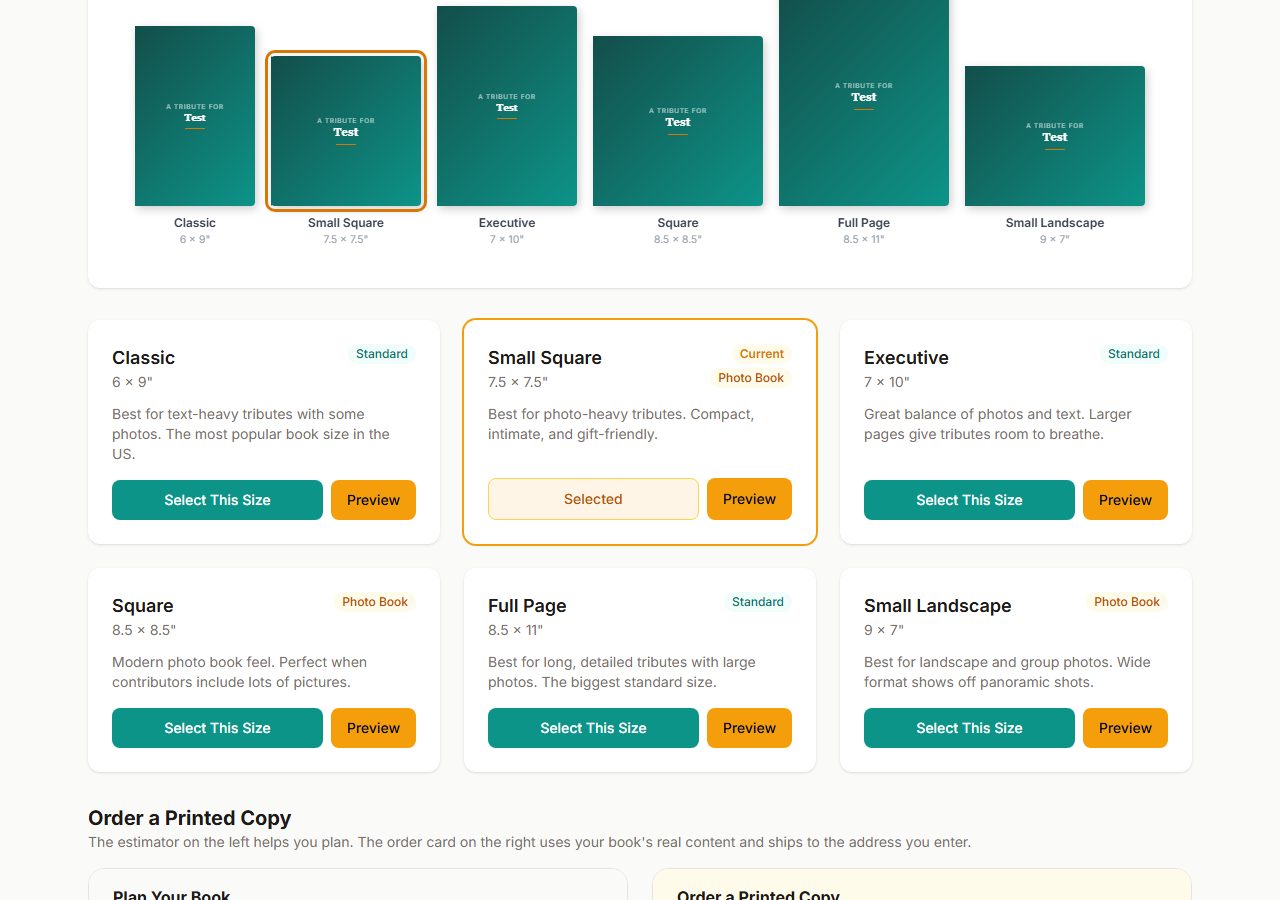
NewLiveThe order form lived at the bottom of a page called "Choose a Book Size," reached through a link called "Plan Your Book." Nothing said "order here." That page is now titled "Book Size & Print Order," it opens with a two-step note, and the "Order Printed Copy" button on the book page takes you directly to the order section.
Labels changed
Changed| Before | After |
|---|---|
| Plan Your Book | Book Size & Print Order |
| Choose a Book Size (page title) | Book Size & Print Order |
| Actions | Ready to Print? |
| Reopen for Contributions | Reopen for Tributes |
| (new link) | Check Photos |
What I need from you
- Open your grandmother's book, click Check Photos, and walk through it once. Then download the PDF and look at the two photos that were wrong. Tell me if either is still off.
- Send me the list of labels you want changed. Even "the thing that says X should say Y" is enough.
How this was verified
An automated browser signed in to sayitnowbook.com, opened a test book, exercised the checklist, the Photo Fixer (rotate, size, position, autosave, reset), the order-page link, and the preview, then submitted a tribute through the public form with a sideways photo and a transparent photo and downloaded the resulting PDF. 13 of 13 checks passed on the live site, then a second run submitted a group photo and a portrait to confirm the automatic layout. The screenshots on this page are from that run. Your books were not touched.